Invoicing with Odoo
Table of Contents
Prerequisites
-
An active account on Odoo Online: https://www.odoo.com/ or a self-hosted Odoo instance
-
On Demand Deliveryproduct name on CoopCycle must match product name on Odoo (configurable in Settings):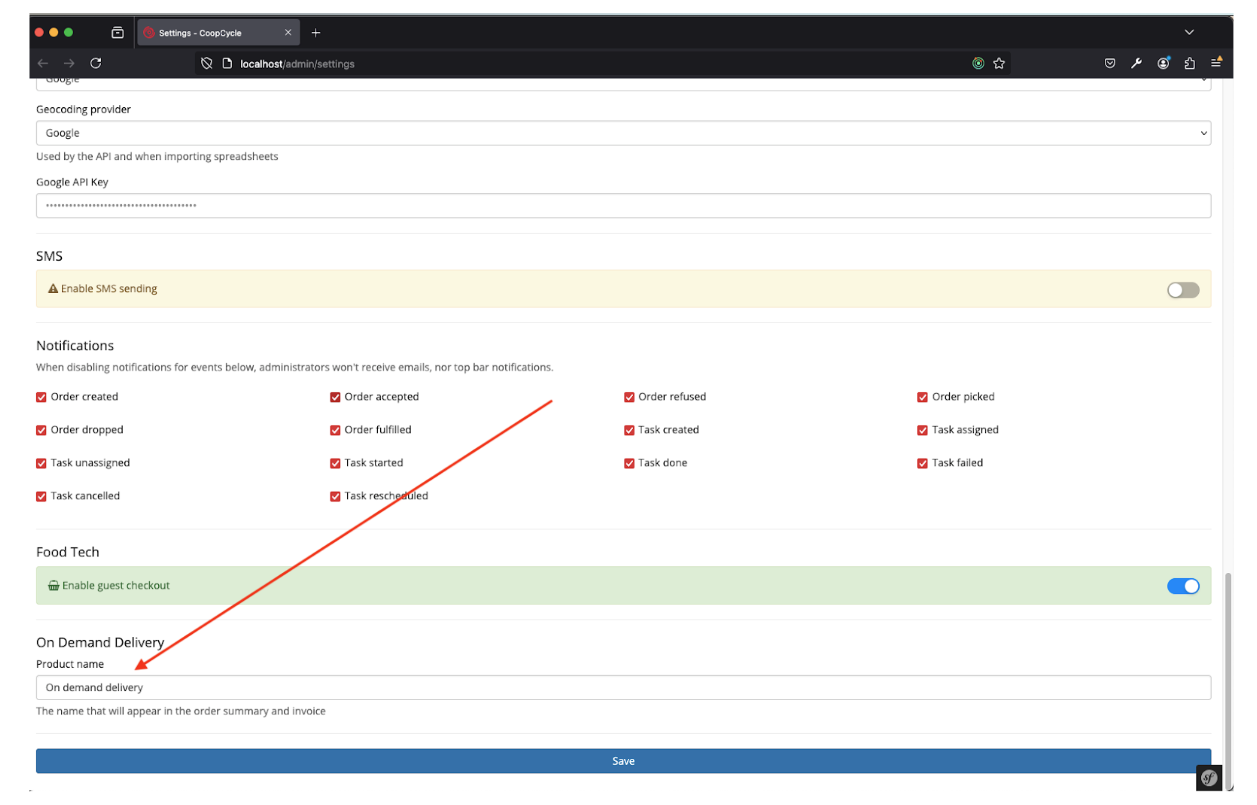
-
Account codemust match an account used on Odoo (configurable in Settings)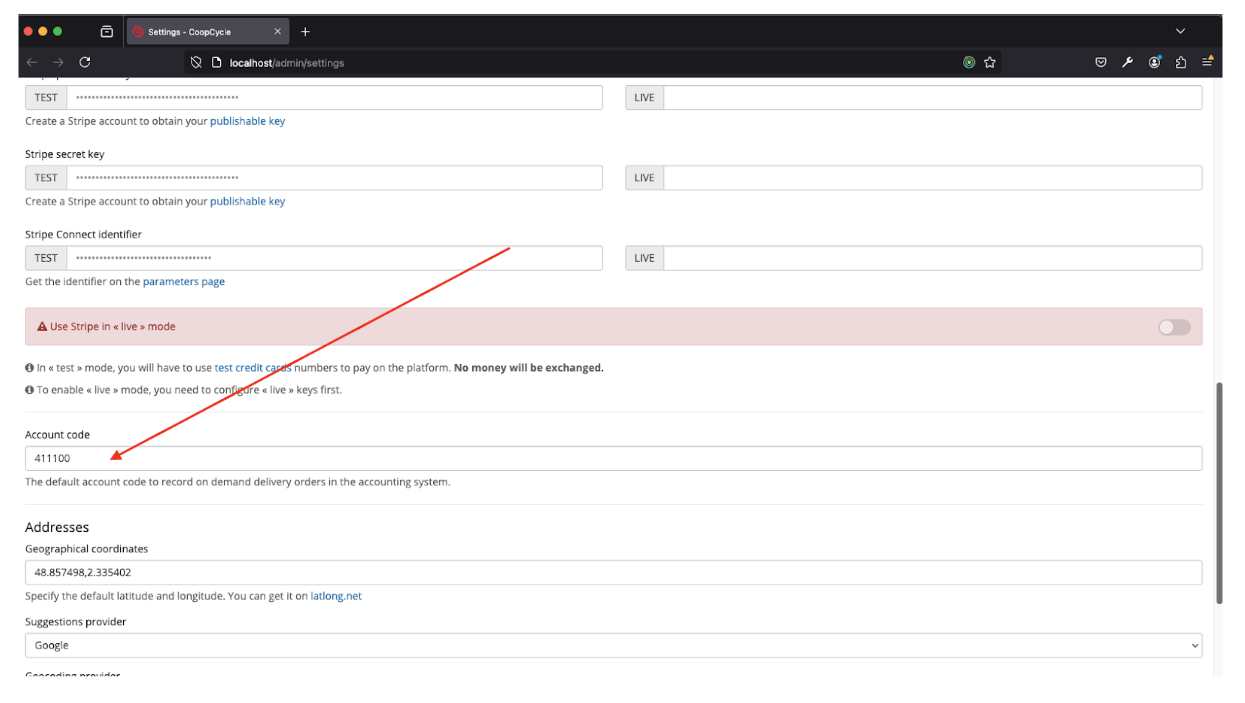
-
Client/Store
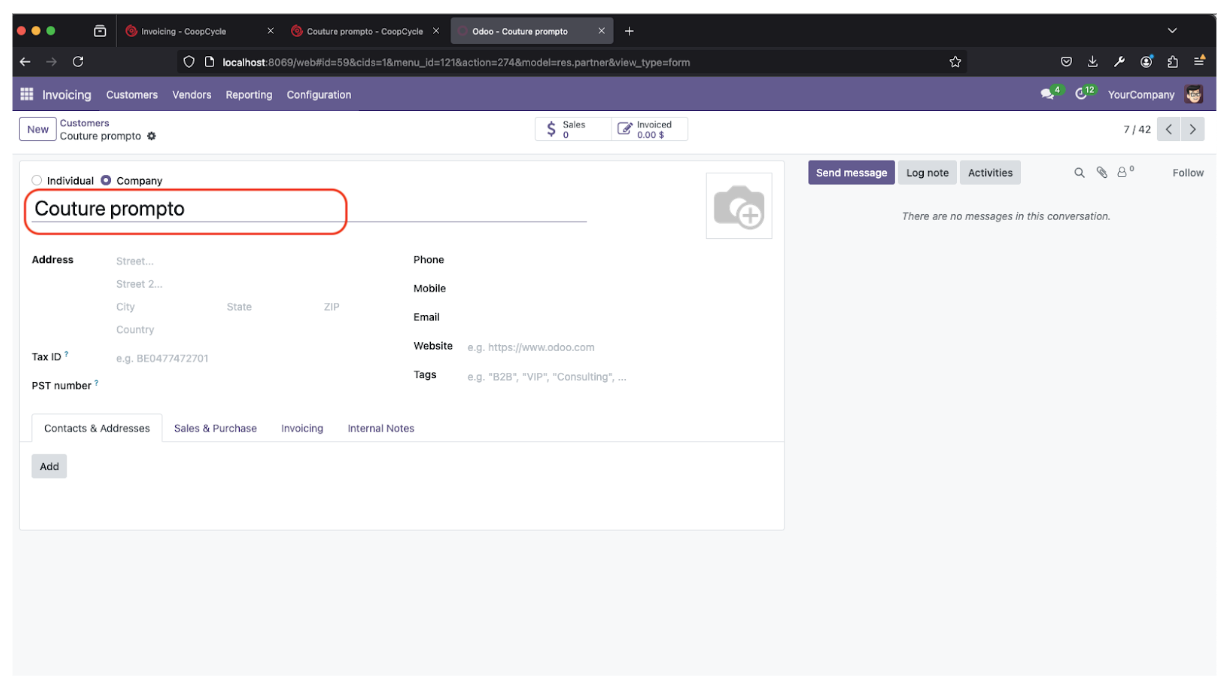
Legal nameon CoopCycle must match Customer name on Odoo: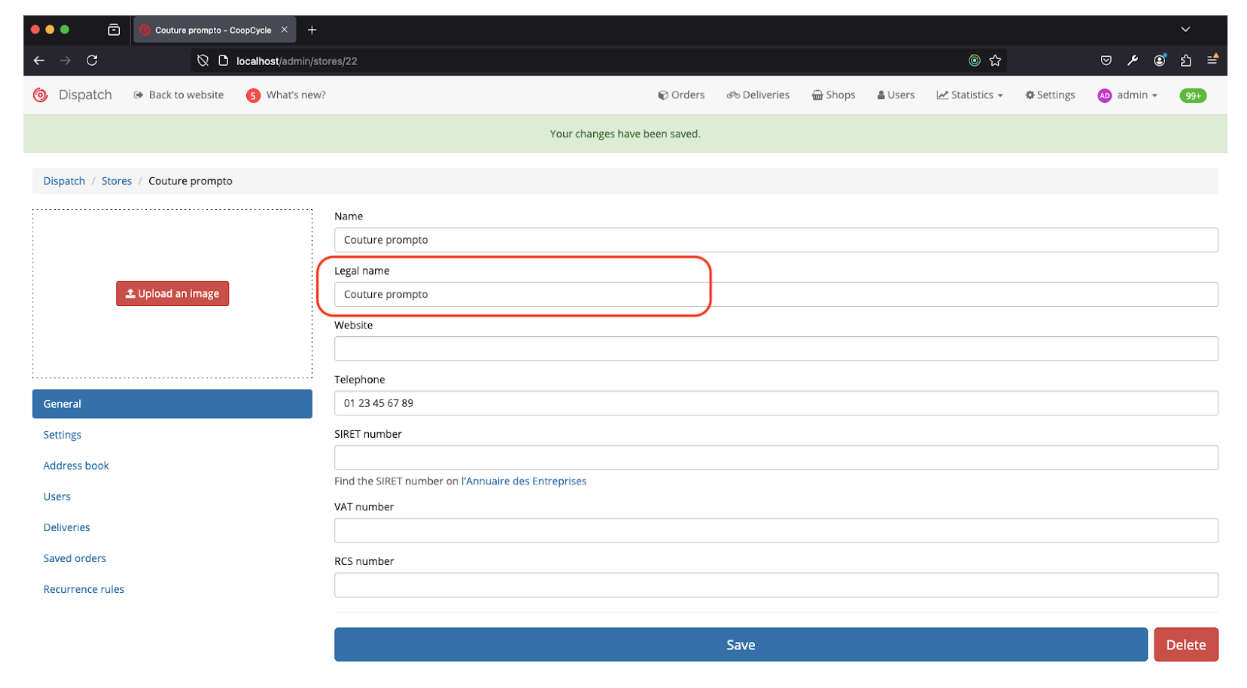
Preparing data for Invoicing
-
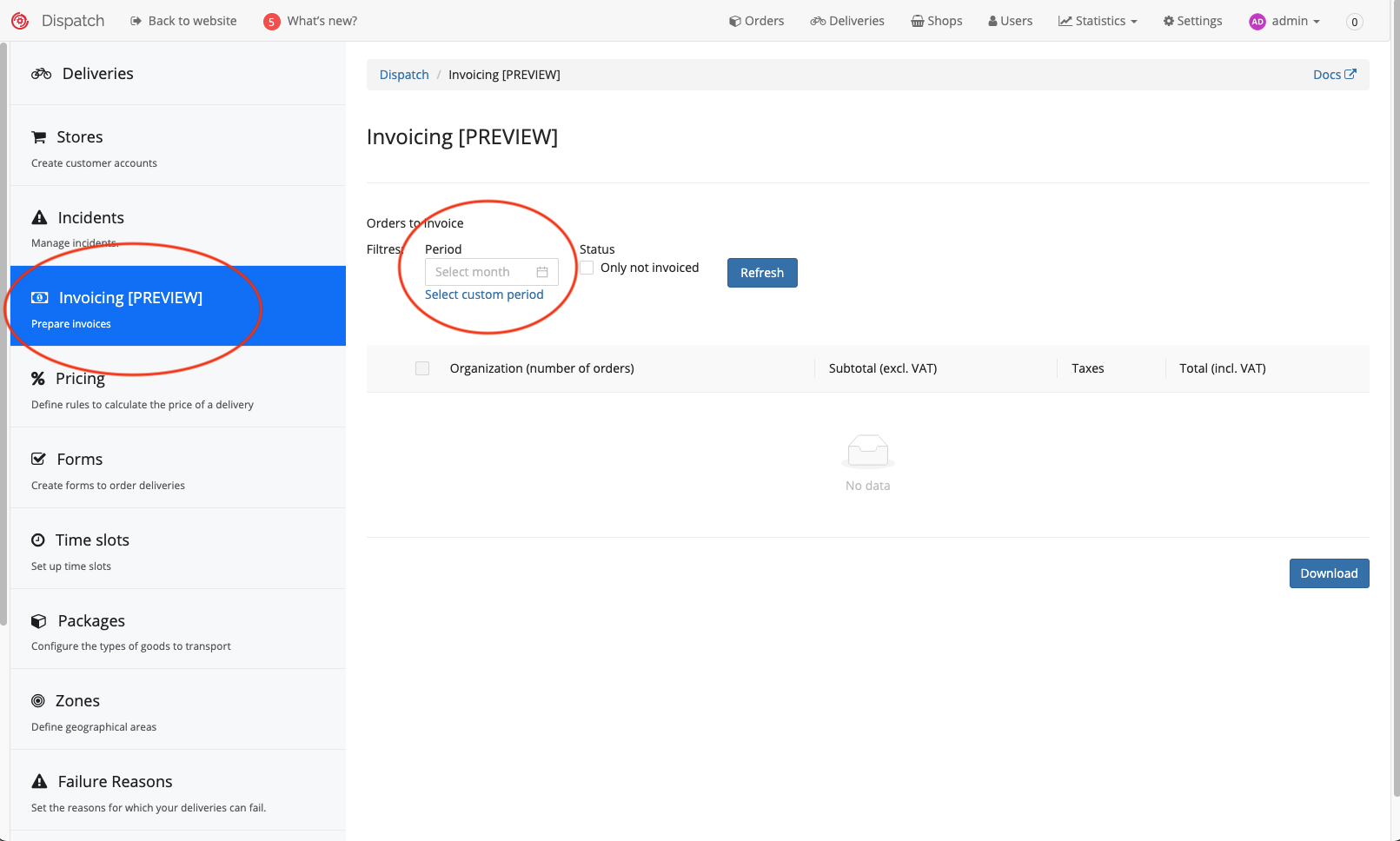
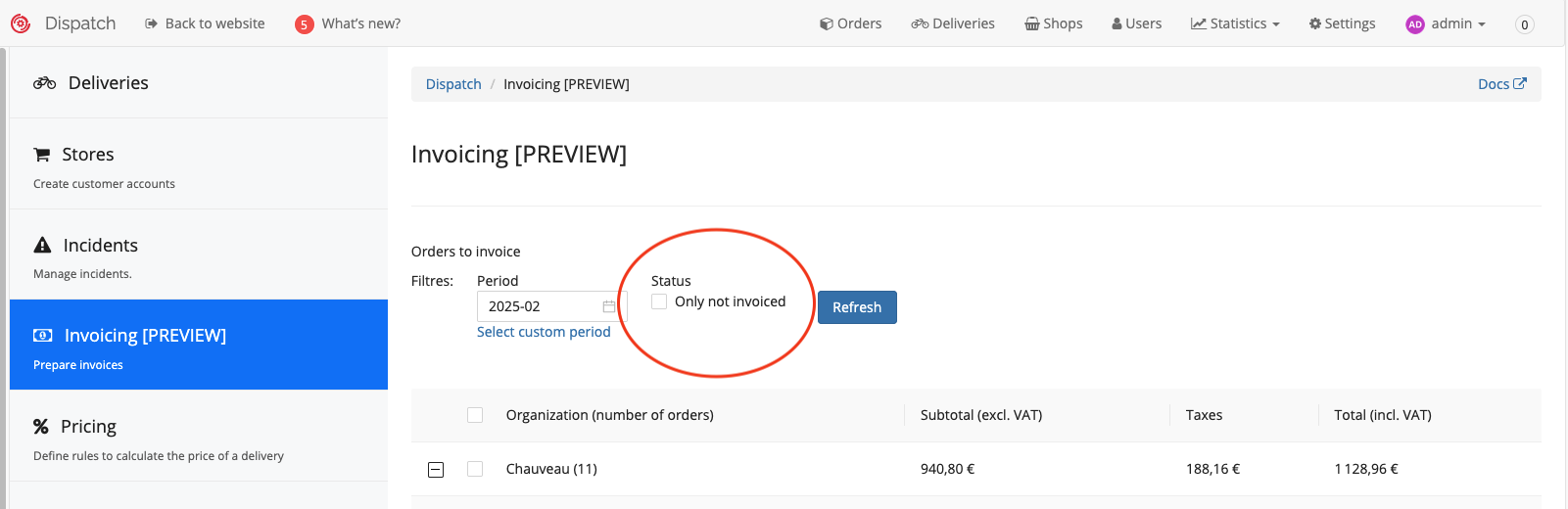
Open Invoicing page and select a period to prepare invoices for:
-
Click
Refreshto find all clients/stores with orders during the selected period: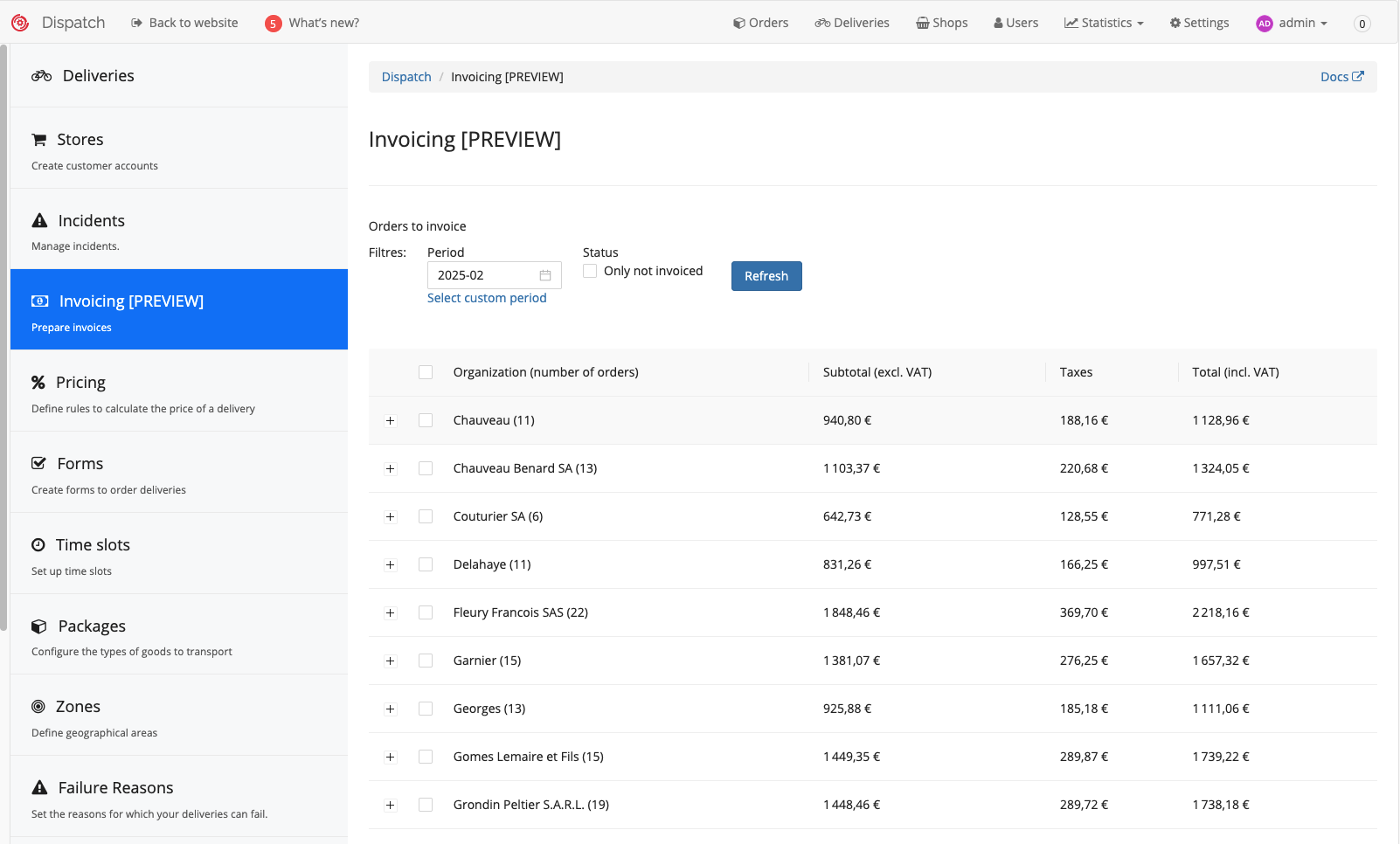
-
Click on the “plus” icon to view orders for each client and verify that all data is entered correctly
Make sure that all prices are entered correctly and match the amount you are going to charge a client.
Only `Subtotal (excl. VAT)` prices are exported to Odoo. `Taxes` and `Total (incl. VAT)` columns are for information only. The actual tax calculation is done on Odoo side.❗️Avoid modifying the price after the export is done to avoid discrepancies between the Client’s CoopCycle Dashboard or Orders history and the totals on the Invoice.-
If something is not correct click on the
Viewbutton next to each order to go to the order details page and modify the data.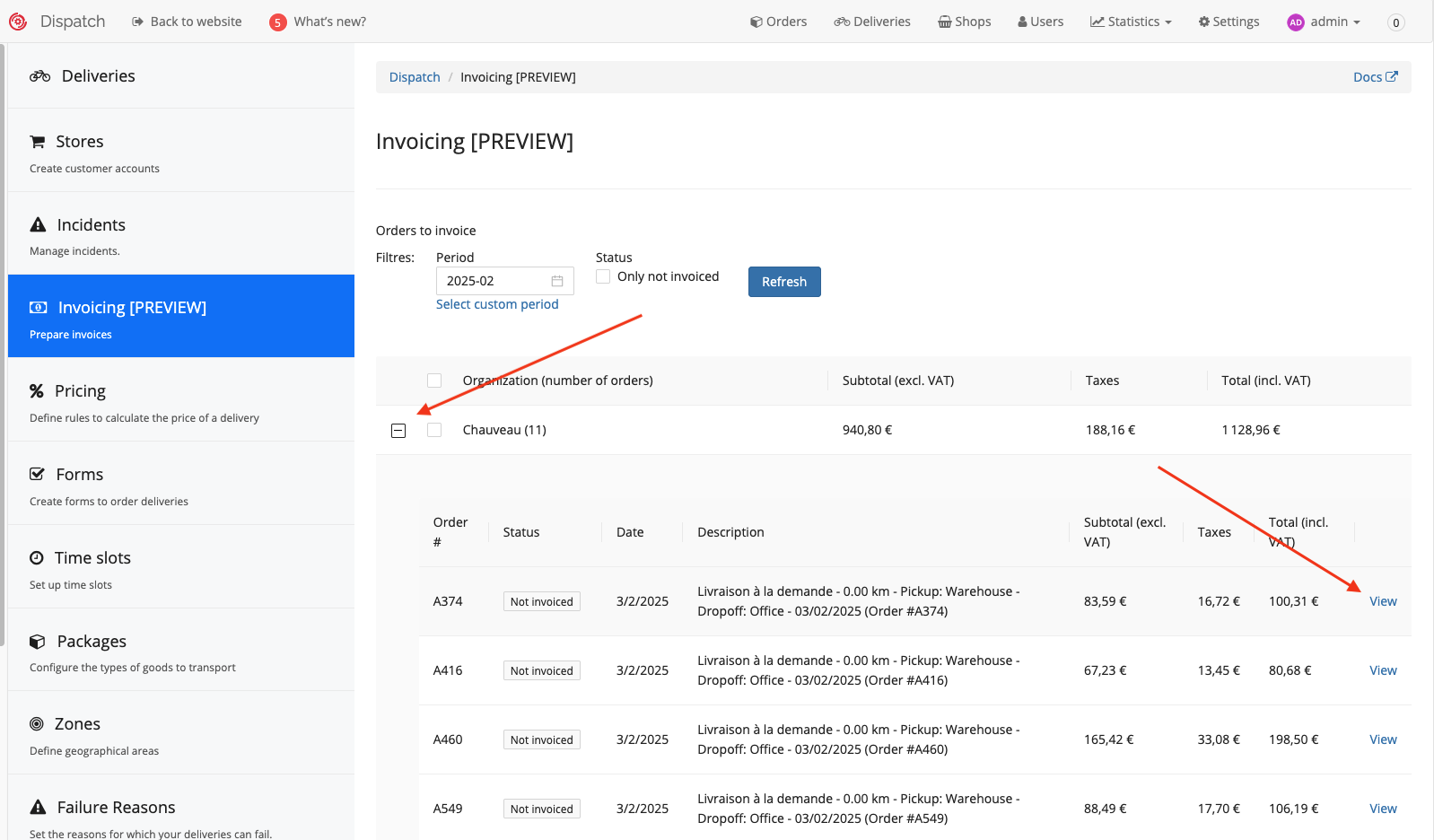
-
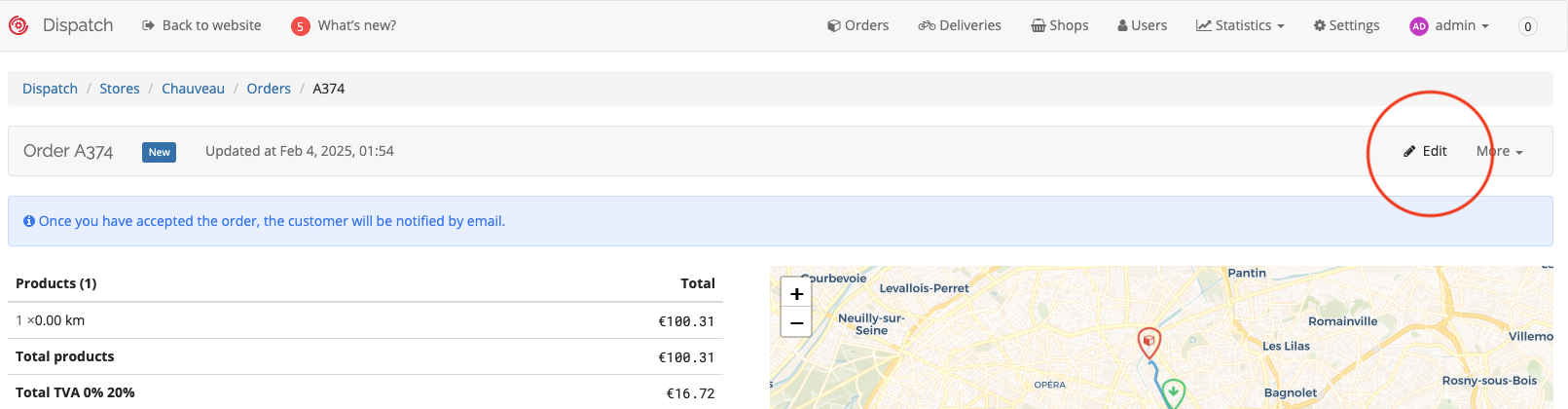
On the order details page you can:
- Update a Description and/or an original price: click on the
Editbutton:
- Modify a price via an Incident; click on the
Create an incidentbutton:
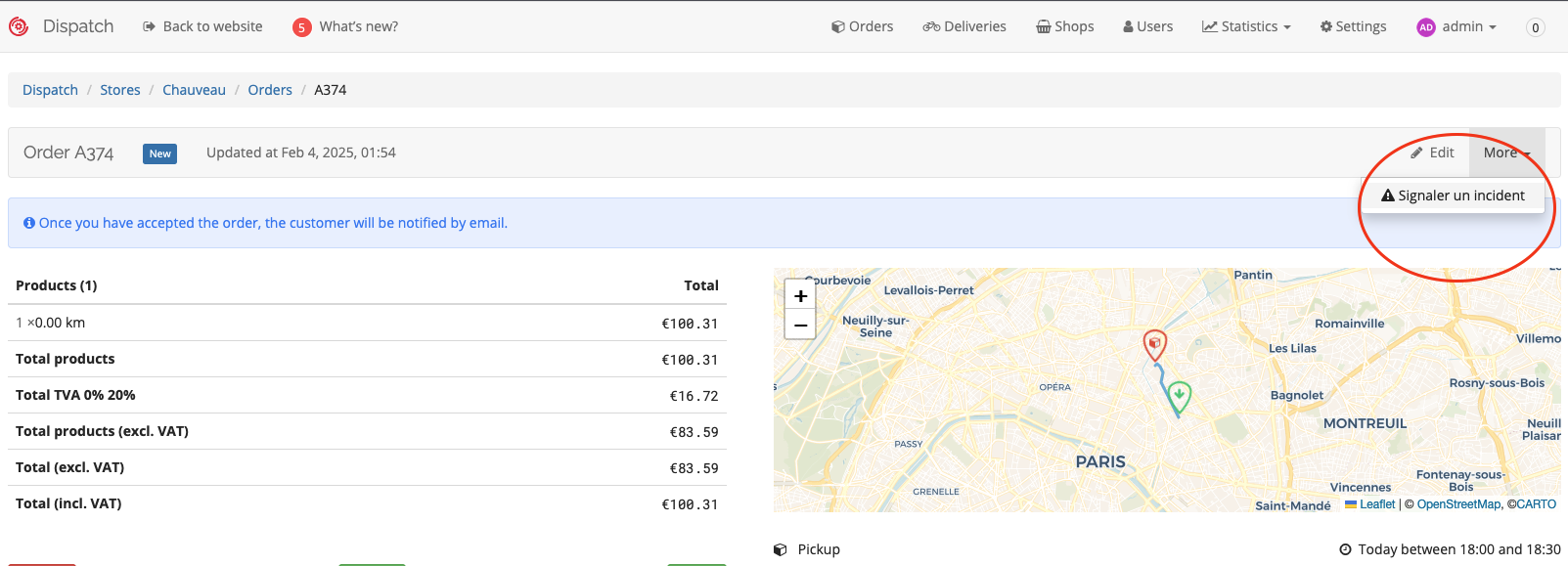 TIP: Use the `Refresh` button to refresh the table after editing instead of a reload page button in the browser to avoid resetting the filters.
 - Update a Description and/or an original price: click on the
-
-
After all orders have been verified select the clients/stores you want to include in the export and click on the
Downloadbutton: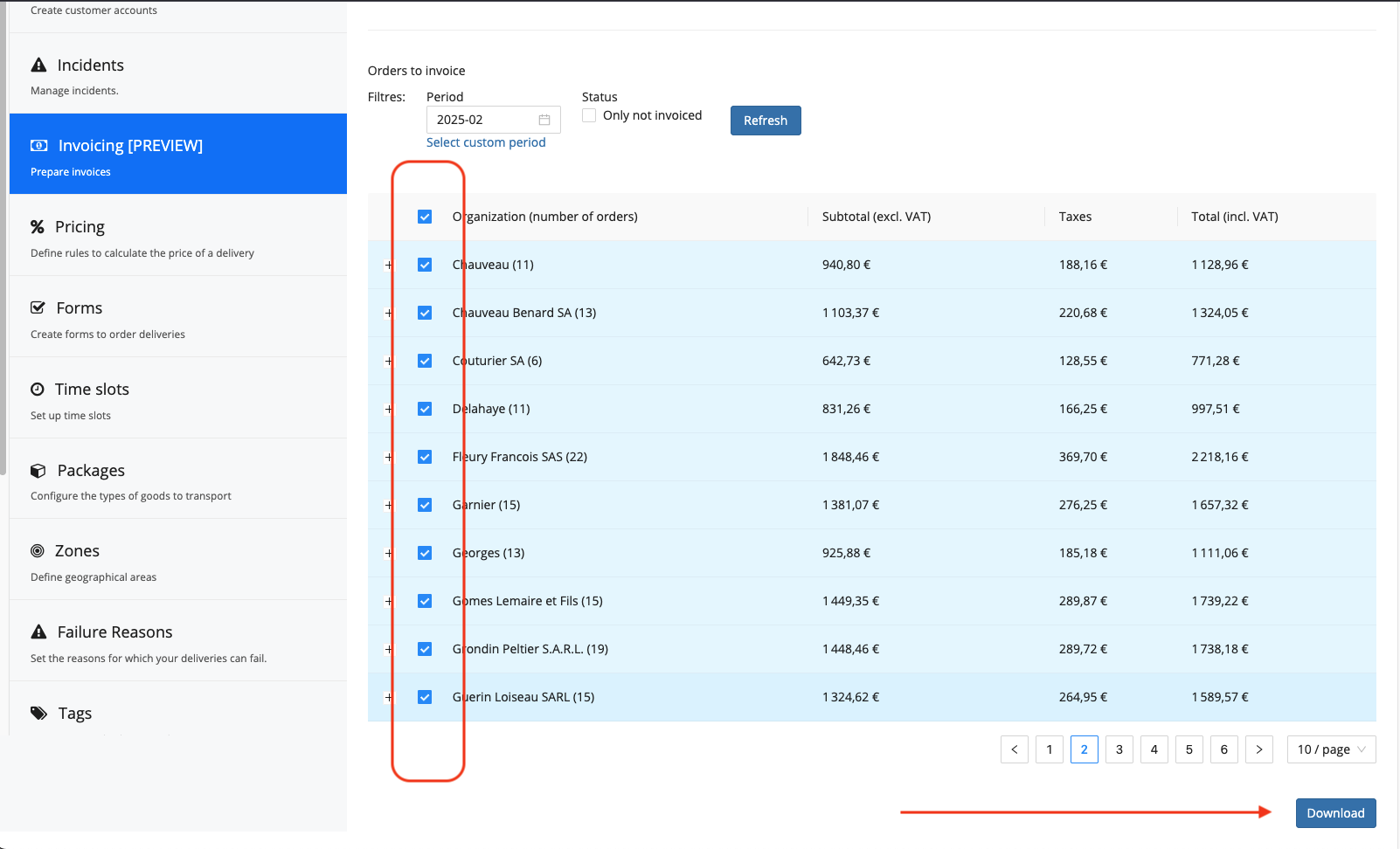
-
Select
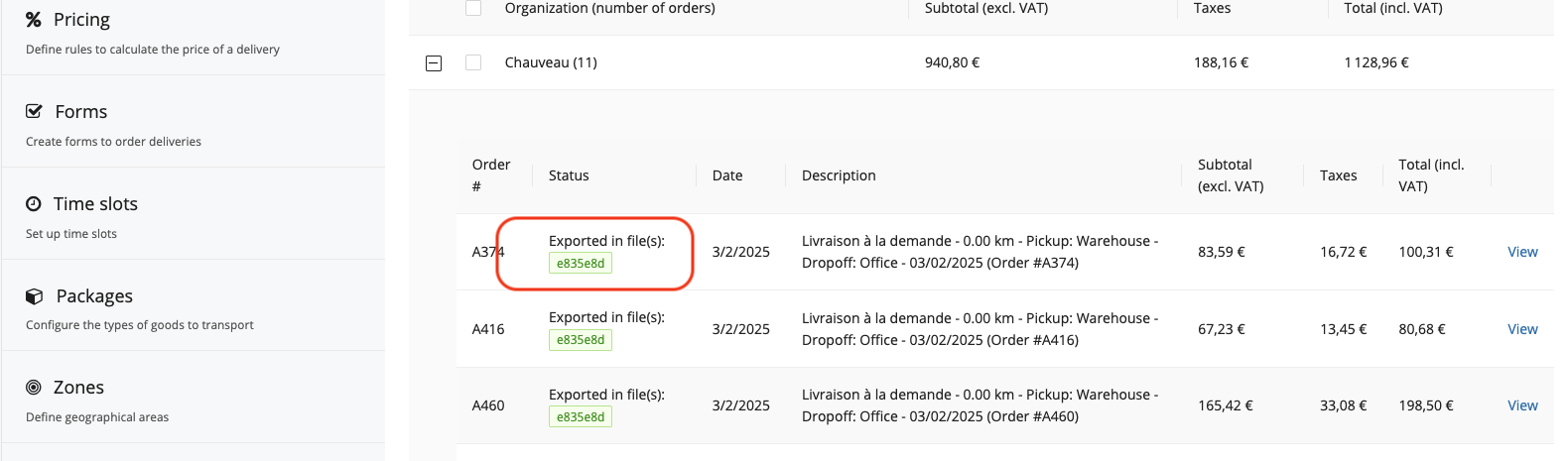
Odoo (CSV)format and click on theDownloadbutton to download the file on your computer: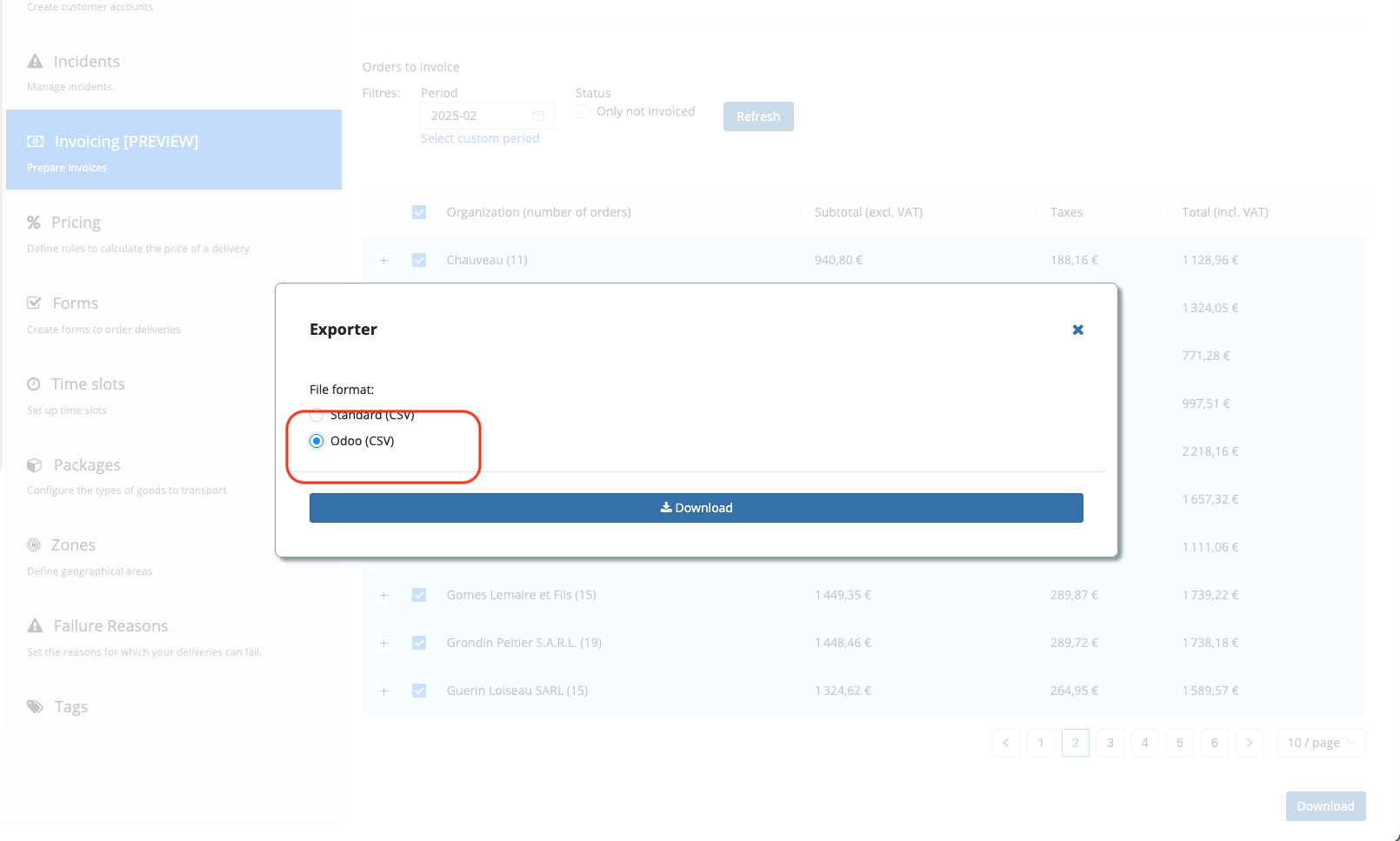 TIP: The orders included in each export will be marked with a file ID. That can be used to track in which file an order was exported. You can also use a filter to see only orders that are not invoiced (not-included in the previous exports).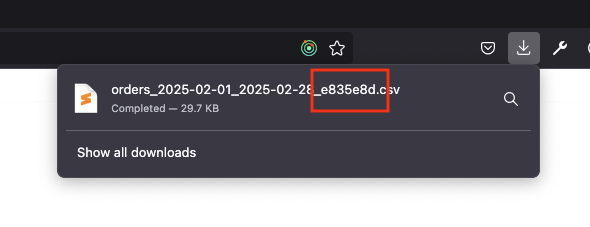
Importing data into Odoo
-
On your Odoo instance go to the Invoicing app and choose
Import records: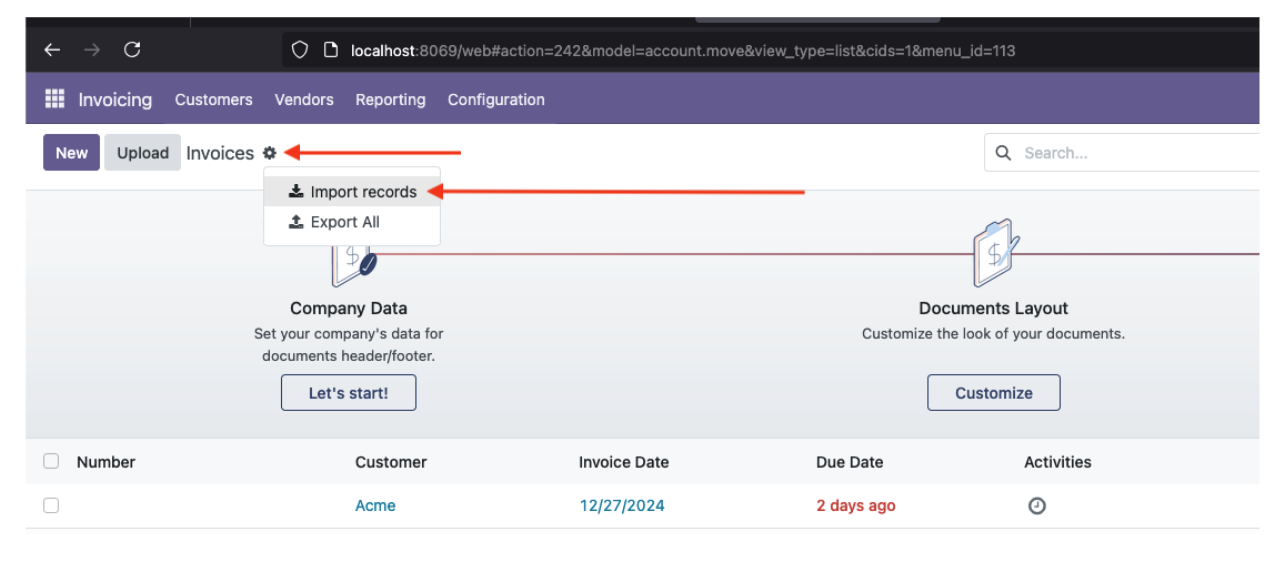
-
Click on
Upload Fileand choose a file that you downloaded from CoopCycleOdoo should process the file and prefill Odoo Fields. Make sure that the fields are the same as on the screenshot and select an
Odoo Fieldmanually if anything is missing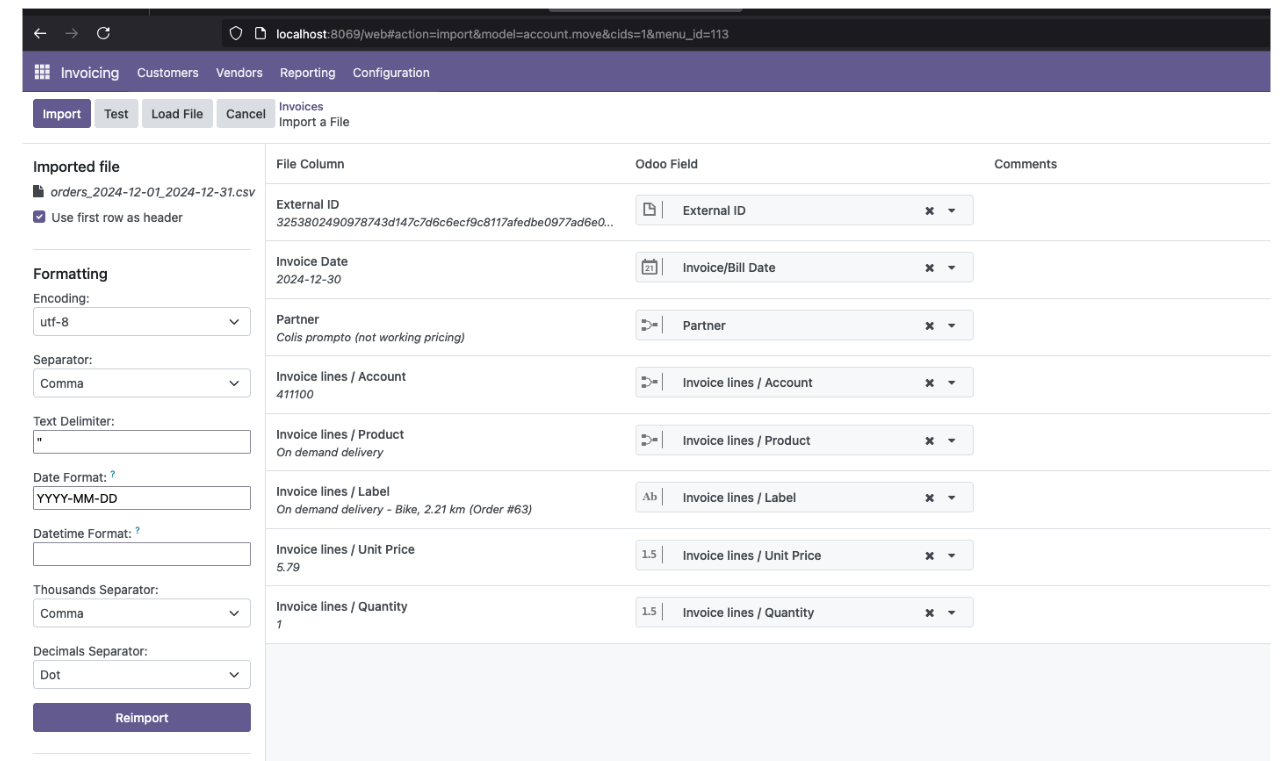
-
Click on
Testto validate the file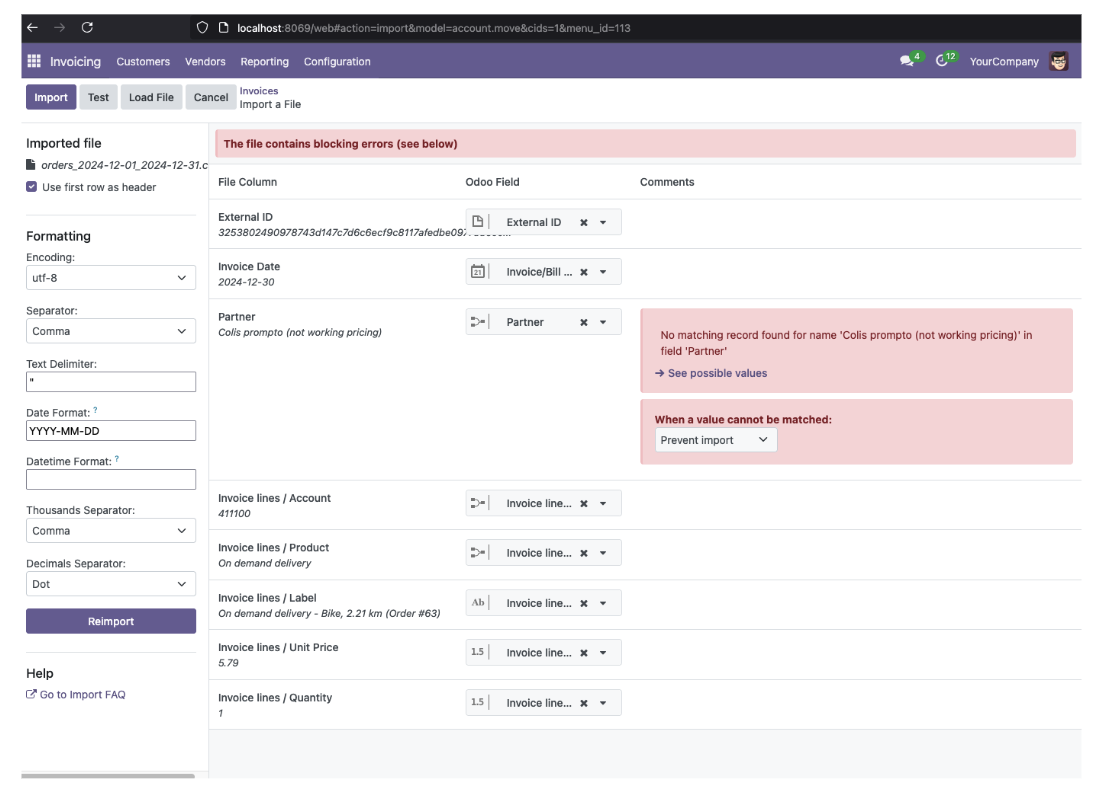
If you get any error messages most probably (1) a Client/Store/Partner name or (2) a Product name or (3) an Account code do not match between Odoo and CoopCycle.
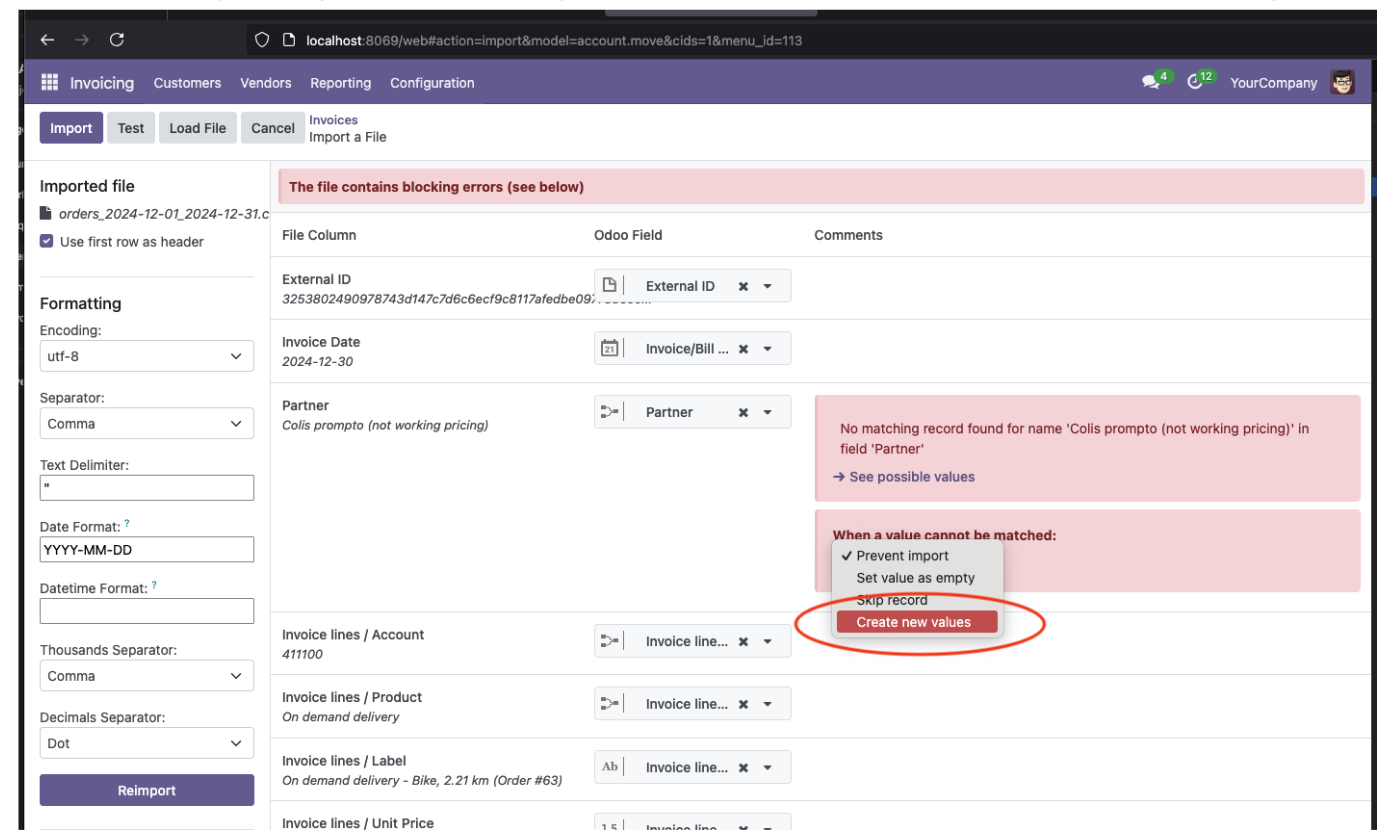
There are two options to solve it:
- Modify the data on CoopCycle to match the data on Odoo; see Prerequisites section above and then repeat the steps from Prepare data for invoicing section again.
OR - Select
Create new valuesoption; that will create a new Client/Partner or a Product entry on Odoo for each missing value (❗️be careful as that might lead to multiple entries for the same Client on Odoo)
- Modify the data on CoopCycle to match the data on Odoo; see Prerequisites section above and then repeat the steps from Prepare data for invoicing section again.
-
Click
Testto re-run the validation. When ‘Everything seems valid’ click onImport: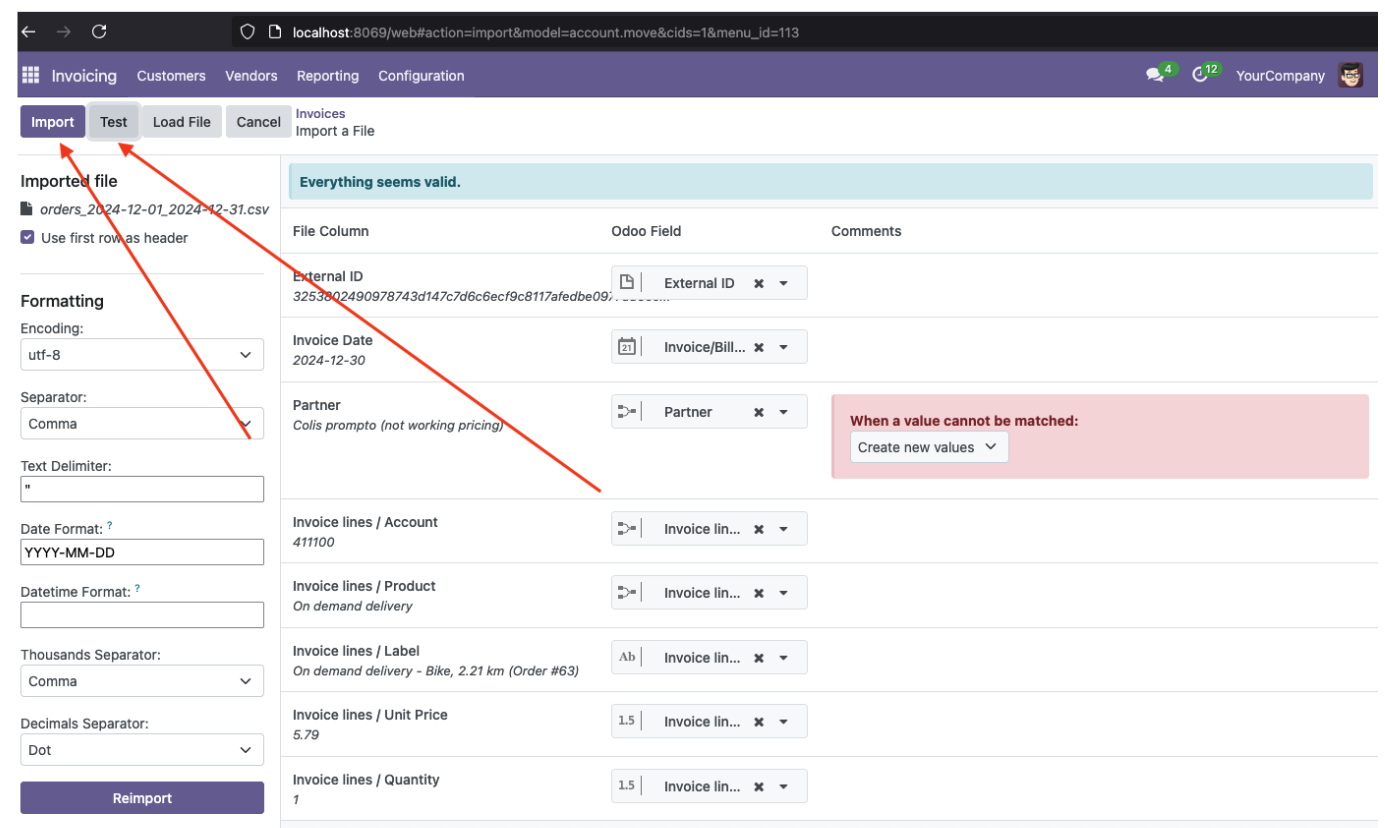
-
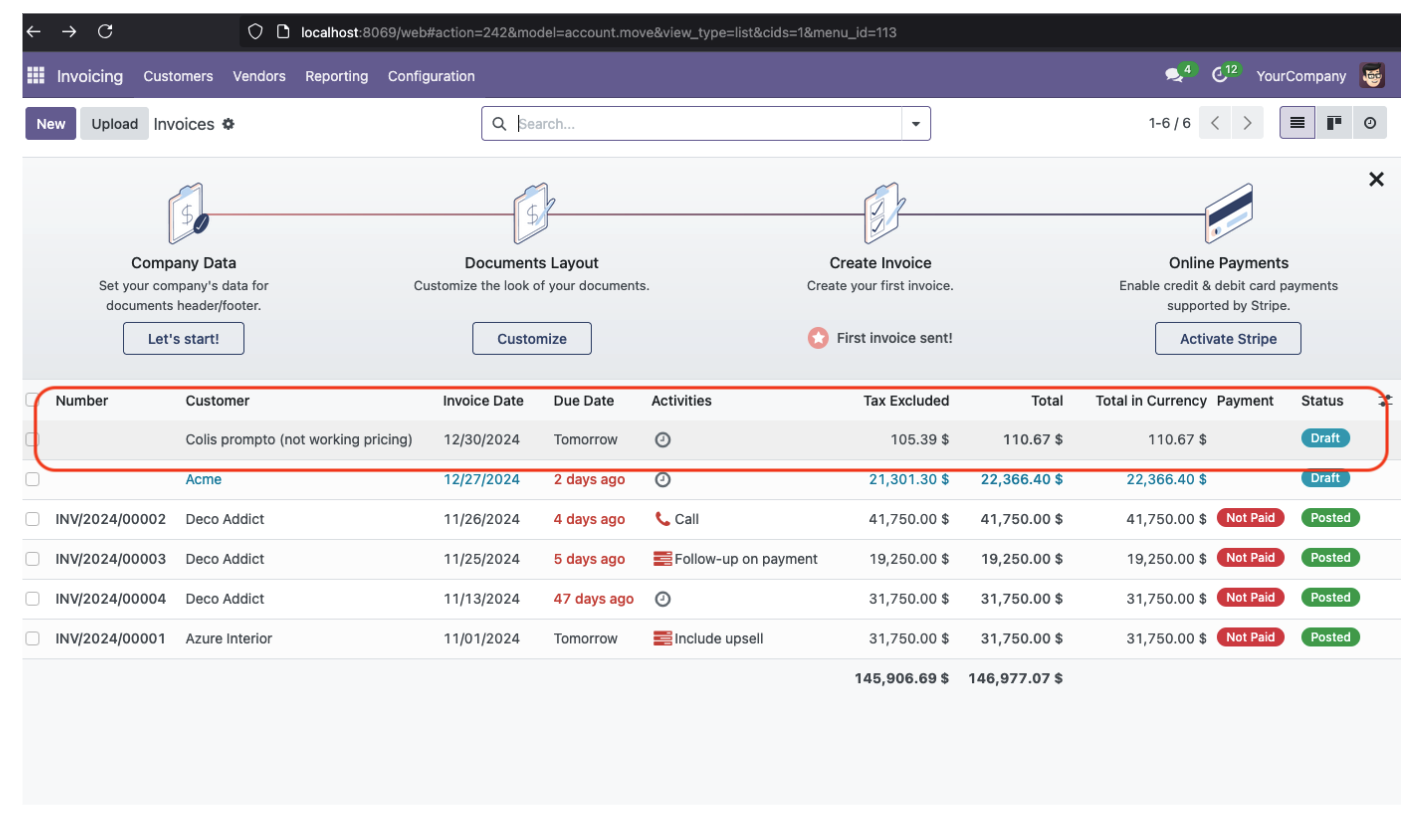
After the file is uploaded (might take a few minutes depending on the number of orders) you should see a new Invoice draft created in the list of Invoices
-
Confirm the invoice and send it to a client using your preferred communication method using a standard Odoo workflow